
By MoMo
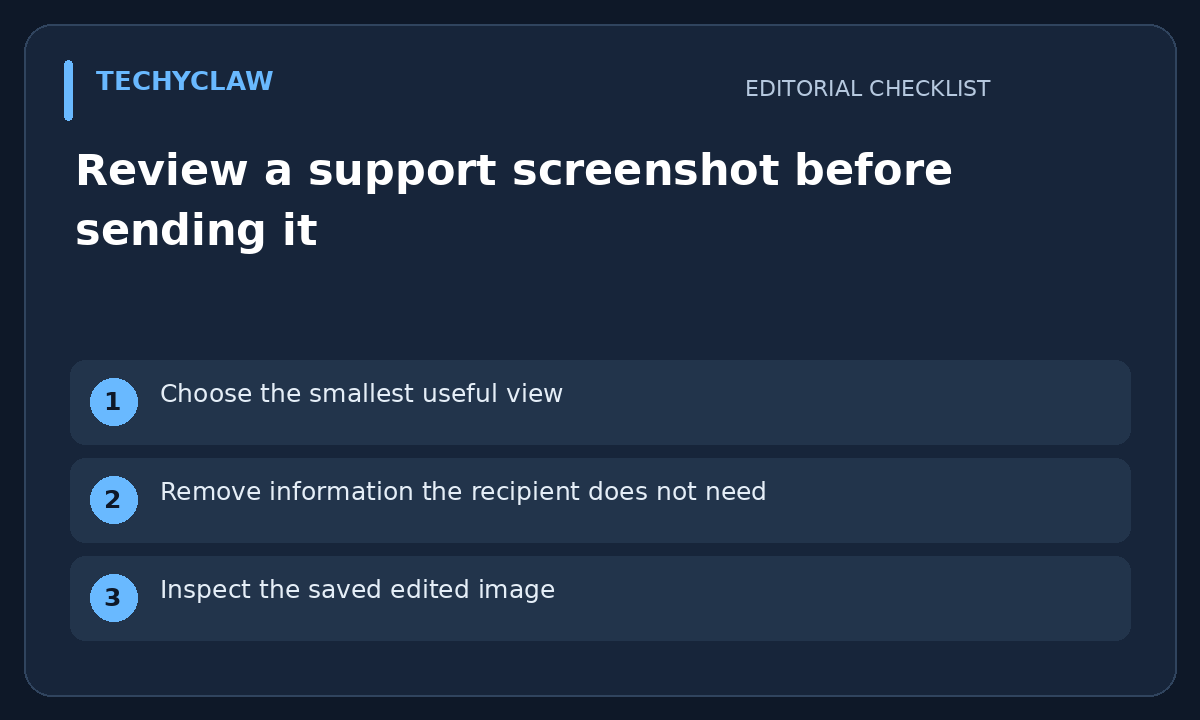
Choose the smallest useful view
Capture the error and enough context to explain where it happened. Before sharing, inspect the entire image, including browser tabs, account menus and desktop notifications. A screenshot of a harmless error can include unrelated information at the edges. Use an invented example when real account data is not needed.
Remove information the recipient does not need
Look for email addresses, customer names, private URLs, document titles and payment details. Never send a password, recovery code or secret key to explain a normal interface issue. If the support team requests sensitive information, verify the official contact route and the actual need before disclosing it.
Inspect the saved edited image
After cropping or redacting, open the exact file you will attach. Check that the removed information is absent and the remaining error is readable. Do not assume a translucent marker or an editable annotation safely removes underlying content. Keep the original private rather than attaching both versions by mistake.
Add a short factual description
Describe the action attempted, the visible error and whether the issue repeats. Include an approximate time and software version only when checked. Avoid calling a screenshot proof of a server outage or an account breach without supporting evidence. A clean image and a precise description make a better support request than a full desktop dump.
Your next step
Review the final screenshot for private details and remove unrelated information before sending it to support.
Related guide: Check unsaved-form recovery before a long browser task